Scheduling Automation: Stop Being the Calendar Manager
Scheduling automation for small business: build a three-tier stack — booking link, automated reminders, calendar rules — to end back-and-forth emails.
The fastest way to reduce the scheduling burden on a small business is to deploy a self-serve booking link for every repeating meeting type — eliminating the back-and-forth email chain entirely. Most owners reclaim 3–5 hours a week within the first month by replacing manual calendar management with a three-tier automation stack.
- The average small business owner spends 4–6 hours per week on scheduling tasks that could be handled by a booking tool costing under £20 per month.
- Three tiers cover everything: self-serve booking for external meetings, automated reminders for reducing no-shows, and internal meeting rules for protecting focus time.
- No-show rates drop by 20–30 per cent when automated SMS and email reminders fire at 24 hours and 2 hours before each appointment.
- The biggest mistake owners make is automating every meeting type at once — start with the single highest-volume repeating meeting and prove ROI before expanding.
- Popular tools include Calendly (best for solo use), Acuity Scheduling (best for service businesses with multiple staff), and Microsoft Bookings (best if already on Microsoft 365).
It is 8:47 on a Monday morning. You open your inbox and find seven scheduling threads queued up from the weekend. Each one needs three or four back-and-forth replies just to lock a single meeting. None of them are billable. By 10:15 you have moved four meetings, confirmed two, and agreed to a reschedule on the seventh. The productive part of your week has not started.
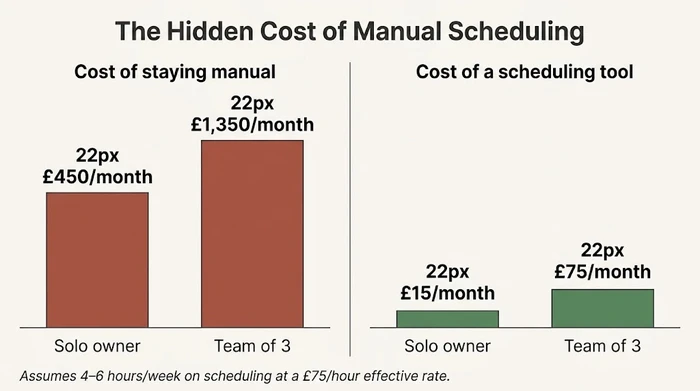
At an effective hourly rate of £75, that Monday morning ritual is worth £450 a month in lost productive time. Multiply by a team of three and it becomes a hiring decision disguised as an admin problem. The worst part: none of this work requires your judgement. It is pattern-matching, calendar lookups, and polite negotiation — exactly the kind of work software handles better than you do.
This guide shows how small business owners can build scheduling automation that actually works in practice. A three-tier stack that eliminates the back-and-forth, cuts no-shows by a third, and protects focus time — without turning your calendar into a free-for-all.
Why Scheduling Still Eats Small Business Time (and What That Actually Costs)
Scheduling is one of the most-solved problems in software. The tools exist. The pricing is low. The setup takes an afternoon. So why are you still doing it by hand?
The honest answer: scheduling feels too small to fix. Four emails on a Tuesday, a text on a Thursday, a quick reschedule on a Friday — no single instance rises to the level of “problem.” It is the aggregate that hurts. And because the aggregate lives in your calendar, not in a report, most owners never measure it.
When owners do measure, the picture is consistent. Administrative surveys of businesses with one to ten staff put scheduling-adjacent work at 4–6 hours per week. That is a working day, every week, spent coordinating meetings that were going to happen anyway. It is also why scheduling automation is one pillar of a broader business automation strategy for small teams — the coordination cost compounds across every repeating process in the business, not just meetings.
The work breaks into three categories. External bookings are clients, prospects, and anyone outside the business who needs time with you. Internal coordination is the team meetings, one-to-ones, and shift rotas that keep the business running. Recurring reminders and follow-ups are the second-touch messages that keep meetings on calendar once they are booked. Each category has its own failure mode. Each one maps cleanly onto a tier of the automation stack below.
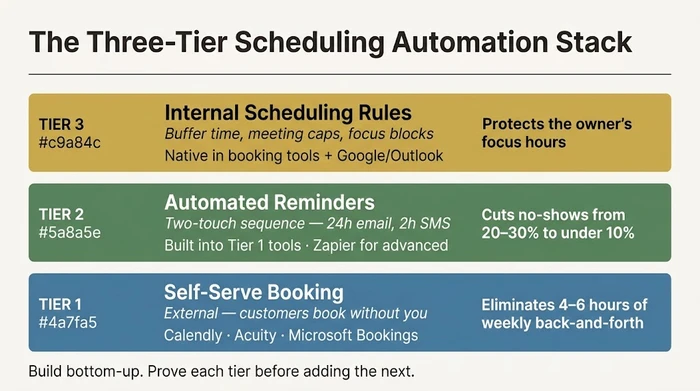
The Three Tiers of Scheduling Automation
Most articles on this topic jump straight to a tool list. That is the wrong starting point. The right tool depends entirely on which tier of the stack you need — work the tiers in order, and the tool selection narrows itself.
Tier 1 — Self-Serve Booking (External)
A shareable link where an external party picks a slot from your pre-defined availability without emailing you first. This is the largest time saver and the fastest to deploy. It is built for service businesses, consultants, agencies, clinics, trades, and anyone who regularly books discovery calls, consultations, demos, or appointments with people outside the business. The popular tools are Calendly, Acuity Scheduling, TidyCal, Microsoft Bookings, and Google Appointment Scheduling.
The justification threshold is low. If you book more than four external meetings a week, a self-serve link pays for itself in the first fortnight. At eight or more, avoiding the setup is harder to explain than doing it.
Tier 2 — Automated Reminders and Follow-Ups
Trigger-based messages — email and SMS — that fire at fixed intervals before and after a booked meeting, without you lifting a finger. Why this matters: no-show rates for service businesses without reminders run at 20–30 per cent. With a two-touch sequence (email at 24 hours, SMS at 2 hours), no-shows drop to 5–10 per cent. That is the difference between an acceptable operating rhythm and a slow leak of unpaid capacity.
This tier usually lives inside the booking tool itself. Calendly, Acuity, Microsoft Bookings — all of them handle standard reminder sequences natively. Only if you need multi-step follow-ups (a thank-you the day after, a check-in a week later, a re-engagement prompt at 90 days) do you reach for a separate automation layer like Zapier or Make.
Three variables decide how well Tier 2 performs: timing, channel, and tone. SMS outperforms email for same-day reminders. Conversational phrasing reduces cancellations compared with formal confirmations. Include a one-click reschedule link in every message — the message that lets someone move the meeting is the message that stops them cancelling it.
Tier 3 — Internal Scheduling Rules and Focus Blocks
The policies enforced by your calendar tool — minimum notice periods, buffer times between meetings, meeting-free mornings, weekly meeting caps. Tier 3 is what makes Tier 1 sustainable. Turn on a public booking link without Tier 3 rules, and by Friday your week is a wall of back-to-back thirty-minute blocks with no time to prepare for any of them.
These rules are native to every serious booking tool and sit under the “availability” or “scheduling window” settings. Google Calendar and Outlook both support appointment schedules that feed into booking tools, so Tier 3 is rarely a separate purchase.
The build order is fixed. Tier 1 first — it produces the fastest visible ROI. Tier 2 second — it protects the bookings Tier 1 generates. Tier 3 third — it makes the whole stack sustainable. Do not build them in parallel. Do not start with Tier 3. Without Tier 1 in place, there are no bookings for Tier 3 rules to govern.
The Calendar Manager Audit — Find Your Biggest Time Drains First
Before touching a tool, spend fifteen minutes on an audit. The point is not to be exhaustive. It is to identify the one meeting type you should automate first. Most of the ROI comes from that one decision — the rest is sequencing.
Step A — Meeting Inventory
Scan the last four weeks of your calendar. Categorise every meeting type using the columns below. A worked example from a bookkeeper running a three-person practice is filled in first; a blank template follows for your own calendar.
Worked example — a bookkeeper, last four weeks:
| Meeting type | Weekly frequency | Avg. booking messages | No-show rate | Automation candidate? |
|---|---|---|---|---|
| Client review call (existing clients) | 8 | 6 | 15% | Yes — rank 1 |
| New client discovery call | 3 | 9 | 25% | Yes — rank 2 |
| Year-end tax planning session | 2 | 4 | 5% | Yes — rank 3 |
| Internal team standup | 5 | 0 (recurring) | 0% | No — already recurring |
| HMRC / accountant liaison | 1 | 5 | 0% | No — low volume, relationship-sensitive |
Reading the example: the bookkeeper books 8 client review calls a week, each taking 6 back-and-forth messages. That is 48 messages every week spent locking in meetings that happen anyway. Automation candidate #1 is clear before step B even begins.
Your turn — fill in your four-week inventory:
| Meeting type | Weekly frequency | Avg. booking messages | No-show rate | Automation candidate? |
|---|---|---|---|---|
Step B — The Prioritisation Rule
- Highest weekly frequency wins. Volume multiplies every minute saved.
- Highest booking-message count wins ties. Friction compounds faster than volume.
- External meetings before internal. External meetings carry no-show risk; internal meetings rarely do.
Rule of thumb: Automate the single meeting type you book most often first. Do not proceed to the second type until the first is running smoothly.
When the audit is done, you have one answer: your Automation Candidate #1. For the bookkeeper, it is the client review call — eight per week, six messages each, a fifteen per cent no-show rate. That one meeting type is the whole first project. Everything else waits.
How to Set Up Scheduling Automation: A Step-by-Step for Small Business Owners
Setup from zero to live takes about ninety minutes if you stay focused. The sequence below is the same whether you are a solo owner or a team of ten — only the tool changes.
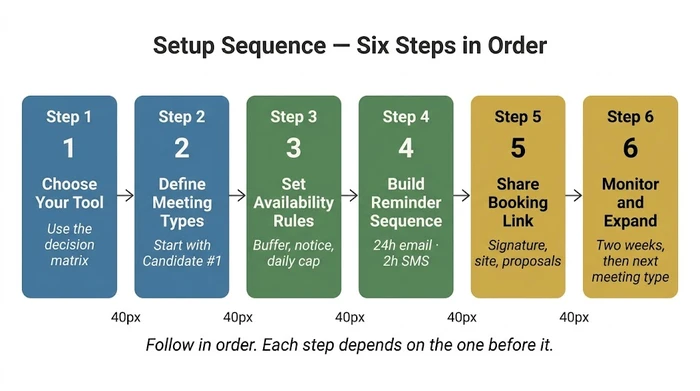
1. Choose your tool. The right tool depends less on features and more on your existing stack and whether you need multi-staff routing.
| Scenario | Recommended tool | Why |
|---|---|---|
| Solo owner, simple external bookings | Calendly (Free or Basic) | Fastest setup, clean interface, widely recognised by clients |
| Service business with multiple staff | Acuity Scheduling | Team availability routing and payment collection built in |
| Already on Microsoft 365 | Microsoft Bookings | No extra cost, Teams integration is native |
| Need payment taken at time of booking | Acuity Scheduling or Square Appointments | Payment processing built into the booking flow |
| Tech-savvy owner, wants full data ownership | Cal.com (self-hosted) | Open source, no per-seat fees when the team grows |
| Very low budget (under £5/month) | TidyCal | One-time purchase option covers ~90% of Calendly Basic features |
2. Define your meeting types. Set up exactly one event type for your Automation Candidate #1 from the audit. Name it as the booker will see it — “30-minute discovery call” or “Quarterly client review” — not internal shorthand like “Chat” or “Sync”. The name is the first signal the booker receives. Vague names generate unqualified bookings.
3. Set your availability rules (Tier 3 foundations). Configure minimum notice of at least 24 hours so no one books you for tomorrow morning at 7am. Add a 15-minute buffer between meetings so you can reset. Cap the number of external meetings per day — start at three and adjust upward only if it feels too restrictive after a fortnight. These three settings are what keep the booking link from eating your week.
4. Build your reminder sequence (Tier 2). Inside your booking tool, configure three messages. An immediate confirmation email the moment a booking is made, including a one-click reschedule link. An email reminder 24 hours before the meeting with the same reschedule link. An SMS reminder 2 hours before the meeting — short and conversational: “Quick reminder: our call is in 2 hours. If something’s come up, reply RESCHEDULE.” The reschedule option in every message is what protects your no-show rate.
5. Share your booking link. Add it to your email signature, your website contact page, and every proposal or quote template you send. Do not gate it behind a form or a “contact us first” step. The whole point is to remove the friction that was the reason you built the link in the first place.
6. Monitor for two weeks, then expand. After fourteen days, check three numbers: the number of bookings on the link, the no-show rate, and the average number of messages from first contact to booked meeting. If bookings are flowing and the no-show rate is under ten per cent, the tier is working. Only then return to your audit and build event type number two.
Choosing the Right Scheduling Tool for Your Business
The decision matrix above handles 80 per cent of cases. For the edge cases, two questions do most of the work. First: do you need multiple staff to be bookable through the same link, with availability routed to whoever is free? Second: are you willing to pay a monthly subscription, or do you want a one-time purchase?
If the answer to both is “no complications”, Calendly on the Basic plan is the default — its name recognition makes it easier for clients to trust, which matters more than most owners realise. Acuity Scheduling earns its keep when you have multi-staff routing, paid appointments, or intake forms before every meeting; the learning curve is steeper than Calendly but the ceiling is higher. Microsoft Bookings is the free default if you are already paying for Microsoft 365 — the interface is dated but the integration with Teams, Outlook, and your existing identity management is frictionless. Cal.com is the right choice if you care about data ownership, want to avoid per-seat fees, and are comfortable with a longer setup. TidyCal is the best value for solo operators on a low budget, with a one-time purchase licence that covers most of Calendly Basic.
One thing to ignore in tool comparisons: feature lists beyond the core trio of booking, reminders, and calendar sync. At the small business level, the secondary features rarely matter. What matters is reliability, client recognition, and how quickly your own setup can be maintained by someone who is not you. Scheduling automation sits alongside other process investments — if you are also tightening up hiring and HR workflows, the same principles apply to employee onboarding automation.
Before expanding your automation stack, there is one category of meeting you should never automate. Most owners get this wrong.
The Anti-Advice — What NOT to Automate on Your Calendar
Not every meeting benefits from being on a public booking link. Two failure modes are common enough to warrant a caution.
Failure Mode 1: automating high-stakes relationship meetings. Enterprise discovery calls, sensitive client conversations, partnership negotiations, and staff performance reviews should not sit behind a public self-serve link. The self-serve flow signals that the booker is one of many — exactly the wrong signal when the meeting is meant to feel bespoke. For these conversations, send a personalised one-off booking link for that specific person only. Calendly supports this with its one-off meeting links; Acuity with its personal scheduling pages using unique URLs. The booking automation still saves you the back-and-forth; the signal to the other party stays appropriate.
Failure Mode 2: opening a public link before your availability is calibrated. The classic failure. An owner turns on Calendly with default settings on Monday morning, shares the link in an email signature by lunchtime, and by Friday has sixteen meetings booked back-to-back across the next three weeks with no prep time. The fix is not to turn the link off. The fix is to configure Tier 3 before sharing the Tier 1 link. Always.
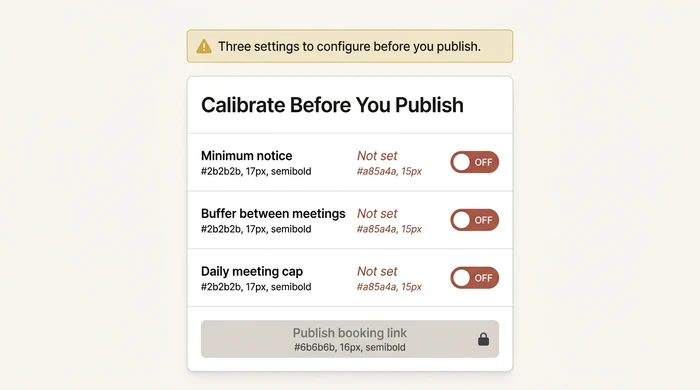
Warning — before you share that booking link
Failure Mode 1: Automating high-stakes relationship meetings. Enterprise discovery calls, sensitive client conversations, and performance reviews should not sit behind a public self-serve link. The self-serve flow signals that the booker is one of many — for relationship-sensitive contexts, that is exactly the wrong signal. Use a one-off personalised booking link for that specific person instead.
Failure Mode 2: Opening a public booking link before your availability is calibrated. Launch a booking tool with default settings on Monday and by Friday you will have fragmented every afternoon for the next three weeks. Configure minimum notice, buffer time, and a daily meeting cap before you publish the link.
Self-serve booking is a power tool. Configure the safety settings before you plug it in.
Variations and Exceptions
Not every small business fits the default advice. A handful of scenarios need an adjusted approach.
If you are in a regulated profession (financial advice, legal, healthcare), check whether automated booking links and reminder messages fit your regulatory framework. Some jurisdictions restrict automated booking for certain professional services, and most have data-protection implications for SMS and email reminders. The adjusted approach: use the booking tool internally (existing clients, internal team coordination) rather than as a public acquisition channel, and tighten the data retention settings inside the tool.
If your clients are not tech-savvy, a booking link only works if the client will use it. For older demographics or non-digital audiences, consider a hybrid flow — they call to book, your assistant (or you) enters the booking through the admin panel, and the automated reminder sequence fires from there. You keep the Tier 2 benefit without forcing a self-serve UI on a reluctant audience.
If your sessions vary significantly in length, create a separate event type per session length rather than one generic link. Never end a confirmation email with “let me know how long you need” — that reopens the manual negotiation the tool was meant to eliminate.
If you operate across time zones, every major booking tool handles time zone detection automatically, but confirm that setting is enabled before sharing the link with international clients. One undetected mismatch creates six months of distrust.
If you have a team of two to five, round-robin meeting assignment is native to Calendly Teams, Acuity, and HubSpot Meetings. Route by availability first, by specialism second. Do not build this routing manually in a shared calendar.
FAQ
What is scheduling automation for small businesses?
Scheduling automation is the use of booking software and workflow tools to eliminate the manual back-and-forth involved in arranging meetings. For small businesses it typically means a self-serve booking link where clients pick a slot (Tier 1), backed by automated reminders that reduce no-shows (Tier 2), and calendar availability rules that protect your focus time (Tier 3). Most small businesses start with Tier 1 and add the others within the first month.
How much does scheduling automation software cost for a small business?
Entry-level tools are free. Calendly has a free tier, Google Appointment Scheduling is included with any Google Workspace plan, and Microsoft Bookings is included with Microsoft 365. Paid plans that unlock team features, SMS reminders, and payment collection typically run £10–£25 per month per user. One-time purchase alternatives like TidyCal reduce ongoing costs to almost nothing.
Can scheduling automation reduce no-shows?
Yes — and the effect is substantial. Automated two-touch reminder sequences (an email at 24 hours and an SMS at 2 hours) consistently pull no-show rates in service businesses from the 20–30 per cent range down to under 10 per cent. The SMS channel outperforms email for same-day reminders. Every mainstream booking tool includes this natively; you do not need a separate reminder platform.
What is the best scheduling tool for a small business?
For solo owners, Calendly Basic or TidyCal cover 95 per cent of needs. For multi-staff service businesses, Acuity Scheduling has stronger team routing and payment integration. Microsoft 365 users should try Microsoft Bookings before paying for anything extra. The “best” is whichever tool removes today’s friction and the next six months of growth — not the one with the longest feature list.
How do I automate appointment reminders without a separate tool?
Both Calendly and Acuity include email and SMS reminder sequences natively. Configure them inside the event type settings — no Zapier or third-party platform required at Tier 1 and Tier 2. If you need more complex multi-step reminder logic, such as a three-day post-meeting follow-up or a 90-day re-engagement prompt, a lightweight Zapier connection from your booking tool to your email platform adds that layer for about £15 per month.
One more thing: run the Calendar Manager Audit today. Pick your Automation Candidate #1, choose the tool from the matrix, and get a booking link live by the end of the week. The hardest part is not the setup. It is overcoming the instinct to manage the calendar personally. The system will not resent the work, will not forget a reminder, and will not need its weekend back. If you want to extend the same principle to other parts of the business, the full business automation guide for small businesses maps where to go next.
Founder, Too Many Hats
Free tool
What it's costing you
See how many hours your manual tasks are really costing you.
Free tool
Problem Solver
Describe your biggest timewaster and get a personalised plan.
Related Guides
AI Sales Follow Up: Stop Ghosting Your Warm Leads
AI sales follow up for founder-sellers: score leads, fire triggers, draft the first touch, and call the right lead today — without burning your domain.
AI Customer Service for Small Business: 3 Modes, 30-Day Path
AI customer service for a small business in three modes — deflection, routing, AI assist — plus the handover seam that protects quality. 30-day path.
How to Reduce Errors in Business Processes (Forensic Guide)
Reduce errors in repetitive business processes with a three-lever sequence: redesign, automate, protect. Scorecard, worked example, 5 rights pattern.